
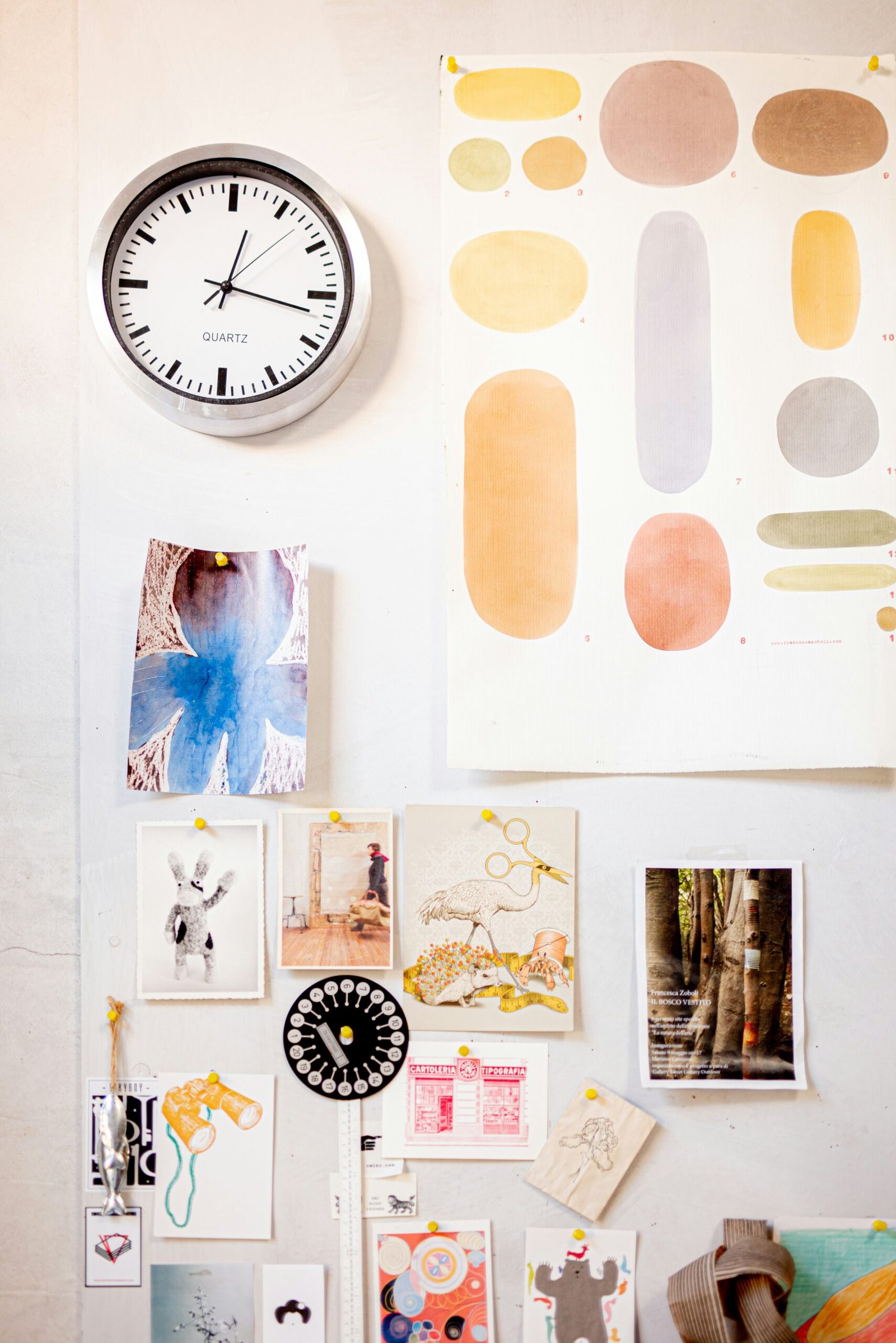
Introduction: Why Moodboard Overlays Are Everywhere
Scroll through Instagram, Pinterest, or TikTok for 30 seconds and you’ll see it: layered images, ripped-paper textures, film frames, and scribbles that make a simple photo look like an editorial spread. That’s the power of a moodboard overlay.
For creators, brands, and designers, a moodboard overlay is one of the fastest ways to:
- Give posts a cohesive “aesthetic”
- Communicate a vibe or concept in seconds
- Make average photos look intentionally designed
This guide breaks down exactly what a moodboard overlay is, how to use it (even if you’re not a designer), and how to turn it into a repeatable system for your content and brand.
Core Concept / “The What”: What Is a Moodboard Overlay?
A moodboard overlay is a transparent or semi-transparent graphic layered on top of photos or backgrounds to create the look of a curated mood board.
Instead of manually arranging dozens of elements from scratch, you drop a ready-made overlay on top and get:
- Collage-style layouts
- Grids and frames
- Tape, paper textures, and scribbles
- Text placeholders and accent shapes
Common types of moodboard overlays:
- Grid overlays
Polaroid-style frames, film strips, or simple boxes dividing your canvas into multiple slots. - Texture overlays
Paper grain, crumpled paper, film dust, grain, shadows, and torn edges. - Branding overlays
Logos, taglines, or repeated phrases placed subtly behind or on top of imagery. - Aesthetic overlays
Doodles, tape, stickers, pins, washi tape, and handwritten notes.
Where creators use moodboard overlays:
- Instagram Stories & Reels covers
- Pinterest pins
- Brand presentations & client pitches
- Digital products (ebooks, lookbooks, Notion covers)
- Website hero images or blog post graphics
Think of a moodboard overlay as a shortcut to “this looks like a designer touched it”—without starting from a blank canvas every time.
Time & Investment: What You Actually Need
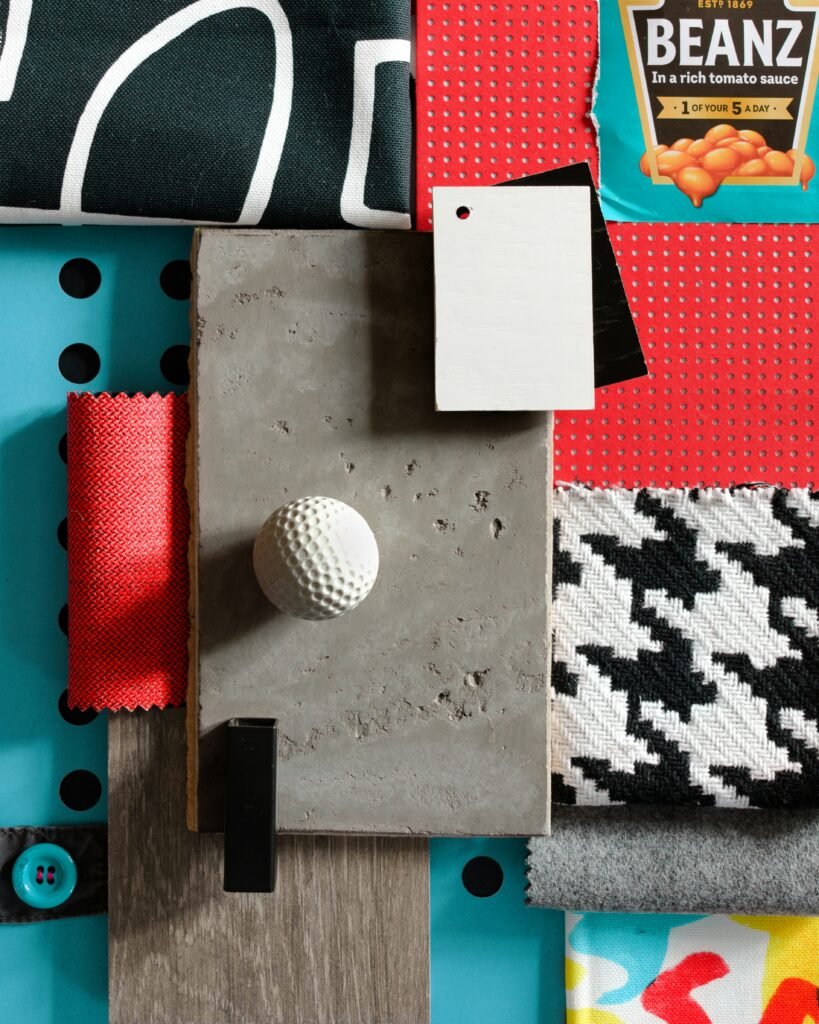
You can start using moodboard overlays with very little time and budget.
Time Investment
Once you’ve done a quick setup:
- Single post / Story: 5–10 minutes
- Full carousel of 3–5 slides: 15–30 minutes
- Brand kit of reusable templates: 1–2 hours (one-time setup)
Money Investment
You have several options:
- Free moodboard overlay PNGs & templates
- Found on design marketplaces, free resource sites, or within Canva/Adobe Express.
- Great for testing what style fits your brand.
- Paid overlay packs or template bundles ($5–$40)
- Cohesive sets in multiple sizes (Stories, Reels, Pinterest, posts).
- Ideal once you know your aesthetic: minimal, vintage, bold, editorial, etc.
- Custom design from a freelancer or agency
- Best for brands wanting a proprietary look.
- Higher upfront cost, but reusable across campaigns and platforms.
If you’re a solo creator or small business, a single moodboard overlay pack can cover months of content.
Step-by-Step / “The How”: Using a Moodboard Overlay in Your Workflow
Below is a tool-agnostic process you can apply in Canva, Photoshop, Procreate, or mobile apps like PicsArt.
Step 1: Define the Mood & Purpose
Before you even pick an overlay, ask:
- What am I trying to communicate?
- Cozy? Luxury? Minimal? Y2K? Editorial?
- What is this graphic for?
- Story, Reel cover, Pinterest pin, sales page, client presentation?
This helps you choose a moodboard overlay that reinforces your message (e.g., clean grids for a luxury brand, ripped paper for a casual lifestyle feel).
Step 2: Choose or Import Your Overlay
Open your design tool:
- In Canva / Adobe Express
- Search for “moodboard overlay,” “photo collage,” “aesthetic grid,” or “torn paper” in Elements or Templates.
- Or upload your own PNG overlays.
- In Photoshop / Procreate
- Import overlay PNGs on a new layer.
- Set blend modes (e.g., Multiply, Screen, Overlay) for textures.
Keep a folder on your device named something like moodboard_overlays so you can quickly reuse favorites.
Step 3: Place Your Images Behind the Overlay
Typical workflow:
- Drag your photos into the document.
- Position them under the overlay layer.
- Resize and crop so important details show through frames/windows.
If your overlay has distinct “frames”:
- Use 3–6 images max to avoid a cluttered look.
- Mix:
- Wide shots
- Details/close-ups
- Maybe one text-only block
Step 4: Adjust Colors & Cohesion
To make the moodboard feel intentional:
- Apply a consistent filter or LUT across all photos.
- Slightly lower saturation or add a subtle tint that matches your brand palette.
- Use the overlay color to tie everything together (e.g., warm beige for neutral brands, deep charcoal for high-contrast mood boards).
Step 5: Add Text, Logos & Final Touches
Keep text minimal and legible:
- One main headline (e.g., “Brand Mood,” “Fall Campaign,” “New Collection”).
- Optional subhead or short descriptor.
- Your logo or handle in a consistent corner.
Then:
- Export at high resolution for where you’ll use it (e.g., 1080×1920 for Stories, 1000×1500+ for Pinterest).
- Save a template version so you can quickly swap photos next time.
Key Benefits & Strategic Impact
Using a moodboard overlay consistently can:
- Increase perceived quality
Your posts look like magazine layouts, not random photo dumps. - Reinforce brand identity
Repeated frames, colors, and textures become visual “signatures” your audience recognizes. - Speed up content creation
The layout decisions are already made. You’re just swapping in new visuals and text. - Help clients & teams visualize direction
For designers, marketers, and photographers, moodboard overlays make it easier to sell a concept or campaign.
Many creators see higher saves and shares on moodboard-style posts because they function as inspiration boards their followers want to revisit.
Optimization & Pro-Tips for Moodboard Overlays
1. Build a Mini Overlay Stack
Create a small “stack” of 3–5 overlays that work together:
- One simple grid
- One torn-paper layout
- One heavy-texture background
- One minimal, single-image frame
- One text-focused slide
Use this stack across:
- Story sequences
- Reels intros/outros
- Launch campaigns
- Email headers
This gives you variety with consistency.
2. Match Overlay Style to Content Type
- Educational / carousels: Clean grids, light textures, generous margins.
- Lifestyle / behind the scenes: Ripped edges, taped corners, scribbles.
- Luxury / high-end: Minimal overlays, thin lines, subtle grain.
3. Use Overlays for A/B Testing
Test two versions of the same content:
- Plain photo vs. moodboard overlay version.
- Track:
- Click-through from Stories
- Saves on Instagram
- Repins on Pinterest
Keep using the formats that outperform for your audience.
4. Create SEO-Friendly Visual Assets
For blog posts and landing pages:
- Name files descriptively (e.g.,
moodboard-overlay-brand-identity.png). - Add alt text referencing:
- “moodboard overlay”
- “brand mood board layout”
- “aesthetic collage for Instagram”
Implementation & Best Practices
For Creators & Influencers
- Turn one photoshoot into:
- A full moodboard carousel
- Matching Story covers
- Pinterest graphics
using the same overlay pack.
- Use overlays to tease drops or launches:
- Blur or partially reveal products behind frames.
- Add phrases like “Coming Soon” or “Drop 03”.
For Brands & Agencies
- Create a branded moodboard overlay kit for your team:
- Logo lockups
- On-brand color overlays
- Grid templates
- Standardize:
- Story highlight covers
- Reel covers
- Case study graphics
This keeps your brand cohesive across multiple designers and channels.
Common Mistakes to Avoid
When working with a moodboard overlay, watch out for:
- Overloading with too many photos
If every frame is full and busy, nothing stands out. Leave some negative space. - Tiny, unreadable text
Aesthetic doesn’t matter if people can’t read the words. Test on your phone before posting. - Clashing styles
Vintage film overlay + neon Y2K stickers + ultra-minimal serif text can feel chaotic. Stick to a defined aesthetic. - Ignoring mobile optimization
Most viewers are on their phones. Design at mobile sizes first and zoom out frequently to check readability.
Maintenance & Long-Term Strategy
- Create a “Content System,” not one-off designs
Save a set of templates in your design tool with:- Locked overlay layers
- Editable photo + text layers
- Batch-create assets
Once a month, make:- 5–10 moodboard-style Stories
- 3–5 Pinterest pins
- 2–3 carousel posts
using the same overlay kit.
- Refresh overlays seasonally
Keep your structure the same but tweak:- Colors (e.g., warm tones for fall, pastels for spring)
- Textures (paper in winter, film grain in summer campaigns)
- Back up your overlay library
Store your PNGs, PSDs, or Canva templates in cloud folders so you never lose the system you’ve built.
Conclusion
A moodboard overlay is one of the highest-impact, lowest-effort tools you can add to your content workflow. With a few well-chosen overlays and a simple system, you can:
- Make your posts look professionally designed
- Communicate mood and brand identity at a glance
- Save time every time you sit down to create
If you’re ready to experiment, start with:
- One overlay pack that matches your aesthetic.
- One Canva or Photoshop template you can reuse.
- One test post or Story sequence this week.
Watch how your content feels—and how your audience responds. Then refine and build your own recognizable moodboard overlay style over time.
About The Author