
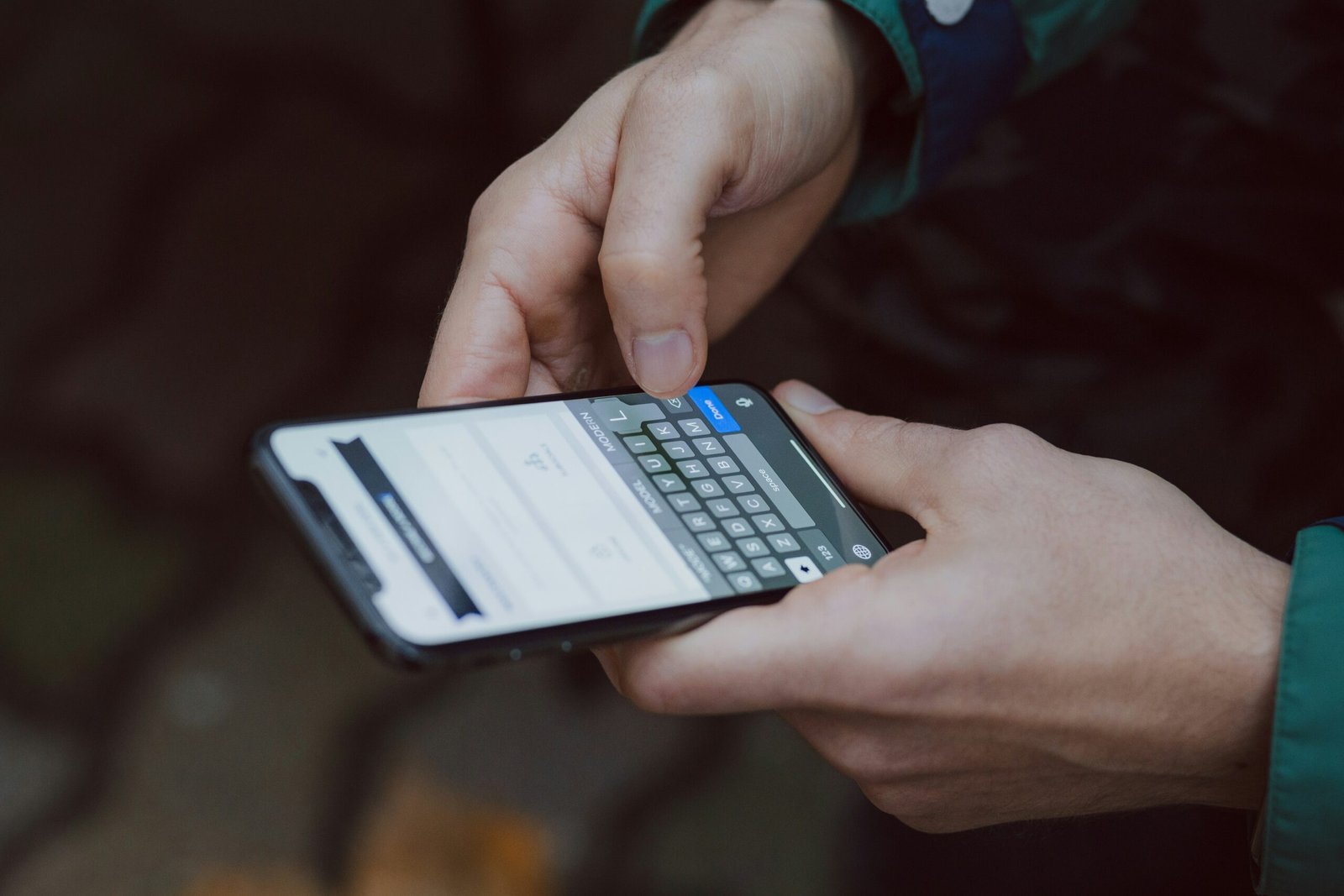
If you’ve ever wished your Messages app looked less plain, you’re not alone. Searches for “iMessage background” customization spike every time Apple drops a new iOS update. TikTok and Instagram are full of aesthetic chat screenshots, pastel bubbles, and themed conversations—but what’s actually possible on iPhone right now, and what’s just editing tricks?
This guide breaks down what you can and can’t change about your iMessage background, plus practical workarounds to make your chats feel more personal and aesthetic without jailbreaking or sketchy apps.
First, the Truth: Can You Really Change the iMessage Background?
As of the latest iOS versions (up to late 2024):
- Apple does not allow full custom photo or theme backgrounds inside iMessage conversations (like WhatsApp or Telegram do).
- You can change:
- System-wide appearance (Light / Dark mode)
- Accent colors in certain Focus modes and accessibility settings
- Your wallpaper, which subtly frames your Messages experience
- The look of individual chats using effects, stickers, and Contact Posters (for people, not the whole chat window)
So when creators show a fully custom iMessage background in a screenshot, they’re usually using:
- Screenshot editing (e.g., adding a background in Canva/Photoshop), or
- A different app that mimics iMessage style.
Still, you can push iOS surprisingly far with the tools Apple does give you. Here’s how.
Step 1: Use Dark Mode & Appearance to Shift Your iMessage Background
The fastest way to change the feel of your iMessage background is to adjust overall appearance.
How to switch Light/Dark Mode
- Go to
Settings → Display & Brightness. - Choose Light or Dark.
- (Optional) Tap Automatic and set a schedule (e.g., Sunset to Sunrise).
What changes in iMessage:
- Light mode: white/very light grey chat background.
- Dark mode: dark grey/near-black background, softer on the eyes.
This isn’t a custom photo, but it’s the only native, Apple-approved way to switch the whole message background color set.
Step 2: Use Wallpapers & Depth Effects to Influence the iMessage Vibe
Your Home Screen and Lock Screen wallpaper technically sit behind the Messages app, not inside each chat. But visually, they define your phone’s entire aesthetic, including how Messages feels.
How to set an aesthetic wallpaper that complements iMessage
- Long-press on the Lock Screen.
- Tap the
+button to add a new wallpaper. - Choose:
- Photos – aesthetic backgrounds, collages, gradients
- Color – pick a solid pastel or muted tone that looks nice with green/blue bubbles
- Collections – Apple’s built-in gradients and illustrations
- Tap Add, then choose Set as Wallpaper Pair (Lock + Home), or customize separately.
Even though the iMessage background itself stays standard, your overall experience (open, close, app switcher, etc.) feels curated when your wallpaper matches your vibe—minimalist, pastel, dark academia, neon, etc.
Step 3: Use Focus Modes to Tint Your iMessage Experience
Focus modes let you create alternate “profiles” on your iPhone—with their own wallpapers, icon styles, and sometimes color vibes that influence how your device feels, including Messages.
- Go to
Settings → Focus. - Tap
+to create a new Focus (e.g., “Social” or “Friends”). - Choose who can contact you during that Focus.
- Set a unique Lock Screen and Home Screen:
- Pick a pink, blue, or neutral gradient wallpaper.
- Optionally use custom app icons for a themed Home Screen.
Now, when you turn on that Focus:
- Your phone shifts into a different visual “mood.”
- Every app, including iMessage, is used within that aesthetic frame.
While it doesn’t directly change the iMessage background, it creates a distinct messaging environment you can flip on and off.
Step 4: Message Effects & Visual Tricks Inside the Chat
You can’t stick a full photo behind the bubbles, but you can make individual conversations feel more alive.
Use full-screen effects
When you type certain phrases or manually trigger effects, iOS applies full-screen animations that briefly transform your iMessage background:
- Type phrases like:
- “Happy Birthday”
- “Congratulations”
- “Happy New Year”
- Or manually:
- Type a message.
- Long-press the Send arrow.
- Choose Screen at the top.
- Swipe through effects (balloons, confetti, lasers, fireworks, etc.).
- Tap Send.
These effects are temporary, but they:
- Break up the monotony of the standard iMessage background.
- Make certain chats (birthdays, celebrations) feel more special.
Step 5: Stickers, Emojis, and Formatting for “Background-Like” Layers
In iOS 17 and up, stickers got a big upgrade.
Add stickers as a pseudo background element
- Open a conversation in Messages.
- Tap the
+icon near the text field → Stickers. - Drag stickers onto a message bubble to “pin” them there.
- Layer multiple stickers to create a mini collage around certain texts.
While this doesn’t change the global iMessage background, it can:
- Turn specific parts of the chat into visual clusters.
- Make conversations look more like a scrapbook or mood board when you scroll.
Step 6: Accessibility Settings for Advanced Color Tweaks
If you’re comfortable going a bit deeper, Accessibility settings let you alter colors system-wide, indirectly affecting how the iMessage background looks.
Note: These are primarily for accessibility needs (e.g., contrast, color-blind modes). Don’t overdo them just for aesthetics if it hurts readability.
Useful options to experiment with
- Go to
Settings → Accessibility → Display & Text Size. - Try:
- Increase Contrast – makes text/bubble edges more defined.
- Reduce Transparency – gives UI elements a more solid background feel.
- Color Filters – tint the entire display (including iMessage) with a subtle color overlay.
A gentle color filter can make your Messages feel warmer, cooler, or softer—like a custom-tinted iMessage background without changing Apple’s core design.
What About Third-Party Apps That Promise Custom iMessage Backgrounds?
You’ll see apps in the App Store or on social media claiming:
- “Fully custom iMessage background wallpapers!”
- “Themes for your Messages app!”
Here’s what they typically do:
- Let you create fake chat screenshots with custom backgrounds and bubbles.
- Offer keyboard themes or sticker packs that sit inside the typing area.
- Provide separate chat apps styled like iMessage.
They cannot:
- Directly modify Apple’s native Messages app UI.
- Insert backgrounds behind actual live chats.
Use them if you want fun screenshots or alternate chat experiences, but don’t expect them to truly replace the default iMessage background in the Messages app.
Design Tips: Make Your iMessage Setup Look Aesthetic Overall
Even with Apple’s limitations, you can still build a cohesive, aesthetic environment for messaging:
- Choose a wallpaper color that complements blue and green bubbles (pastels, soft neutrals, muted gradients).
- Use Dark Mode at night for a cozy, cinema-like chat feel.
- Create a dedicated Focus mode with matching wallpaper and icon theme for “social time.”
- Use Contact Posters (in iOS 17+) to give individual people a custom visual identity when they call or message you.
- Stick to 1–2 core colors across wallpaper, widgets, and app icons so your phone feels curated.
Instead of chasing a non-existent magical setting called “change iMessage background image,” think in terms of:
- System-wide vibe
- Per-conversation flair
- Visual consistency
FAQs About iMessage Background Customization
No. As of the latest iOS versions (through late $2024$), Apple does not allow setting a custom photo or wallpaper as the chat background inside Messages. Any such screenshots online are edited or from other apps.Not in the strict sense. You can change Light/Dark mode, wallpapers, Focus mode aesthetics, accessibility filters, and use effects/stickers, but you cannot apply a custom theme that replaces the default chat background.Many are simply harmless editors or theme creators, but they **cannot** alter the real Messages UI. Always: – Check reviews and permissions, – Avoid apps that request excessive data access for simple visual features, – Understand you’re mostly getting tools for screenshots or separate chat environments.
Final Thoughts: Work With iOS, Not Against It
Apple keeps tight control over the Messages design, which limits true iMessage background customization. Instead of fighting that, use:
- Appearance (Light/Dark)
- Wallpapers & Focus modes
- Effects, stickers, and accessibility tints
to build a personal, aesthetic messaging experience that still feels native, smooth, and secure.
If Apple ever opens up deeper theming options in future iOS releases, you’ll be ready—with a clear sense of what kind of iMessage background and vibe you actually want.
About The Author